 David Straub
Customizing Gramps Web for Societies and Families
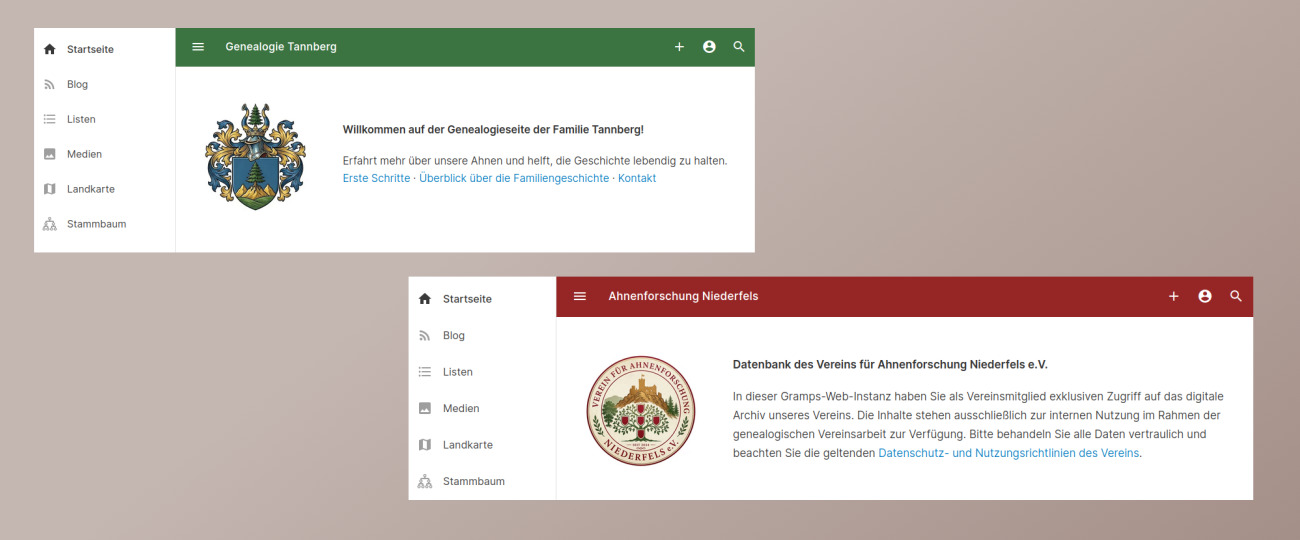
Gramps Web can now be adapted more easily to the specific family tree. Tree administrators can define central settings that apply to all users, from colors and title to content shown directly on the home page.
This is especially useful when a tree is shared. For genealogical societies, Gramps Web can feel more like a dedicated workspace. And for families or larger networks of relatives, it becomes easier to give the shared tree a more personal frame.
What was missing before
Until now, it was not particularly easy to store general information directly inside Gramps Web. Anyone who wanted to provide a short introduction, notes about the structure of the tree, or practical instructions often had to rely on external documents.
The interface itself also remained largely neutral. That left little room to present a tree as a shared project with its own identity.
What is possible now
The new tree-wide settings provide more room for that:
- Custom interface colors: Primary and accent colors can be adapted to the tree.
- A custom app title: Instead of only the tree name, a more suitable title can appear in the navigation bar and browser tab.
- A note on the home page: Any Gramps Note object can be shown prominently on the home page.
- A home page image: Any Media object can be displayed as a large image on the home page.
These settings are not just personal preferences for individual users. They apply to everyone working with the tree.
Why this matters for societies and families
For genealogical societies, this is useful when the home page should immediately show what a tree is about, which rules apply, or how collaboration is organized. A short introduction, a society logo, or a fitting image can make a shared project much clearer.
The same is true for family projects. If several relatives have access to the same tree, important information can be placed where everyone sees it. A suitable title image, a family crest, or a custom app title also makes the shared tree feel more personal.
Practical examples
These options are simple, but versatile. For example:
- a short getting-started note for new users
- notes about naming conventions or source work
- explanations of which family branches or regions are covered
- a society logo, family crest, or historic photo on the home page
- a project-specific title instead of only the technical tree name
This makes Gramps Web not just a place for genealogical data, but also a shared starting point.
Available in the admin settings
The new options are available in the tree admin settings, where colors, app title, home page note, and home page image can be selected and saved directly.